





How to Use Meeting Transcripts, Summaries, and Action Items

Table of Contents
A call recording preserves the full conversation. But replaying a long meeting call just to confirm one date or decision is not practical at all. Meeting summaries give teams a faster way to see:
- Events changed after the call
- What was agreed
- Which elements still need attention
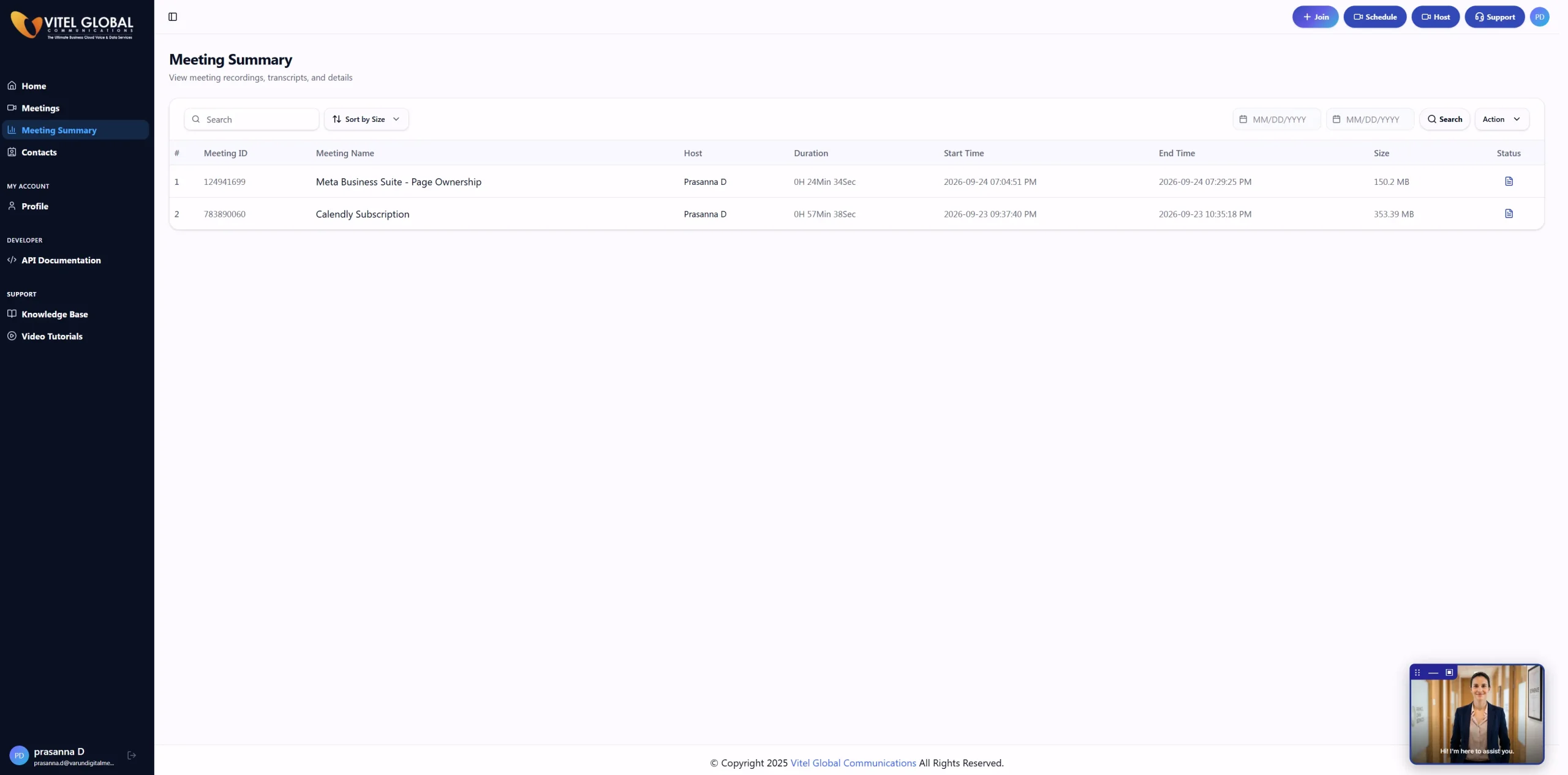
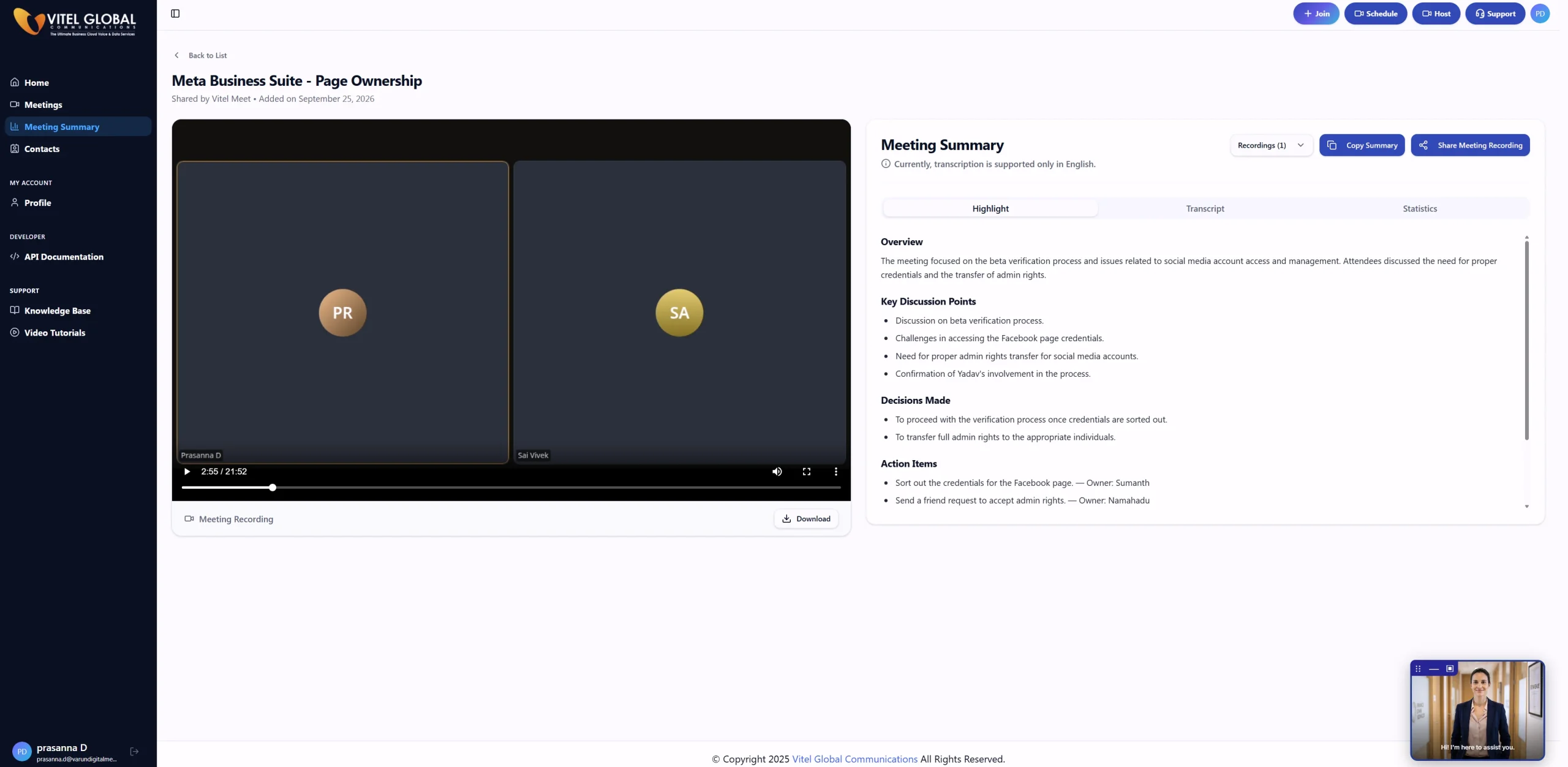
That record becomes more useful when it is checked against the meeting transcription. The transcript shows what people actually said. AI meeting summaries condense the discussion into a shorter recap. Meeting action items pull out work that may need an owner and deadline.
The review still matters.
A deadline may change during the last few minutes. A speaker label may attach a statement to the wrong person. A task may appear in the generated notes even though nobody actually accepted it. Those details should be checked before the meeting record is shared.
Vitel Meet brings recordings, speaker-labeled transcripts, highlights, recaps, and action items into a Unified Dashboard, where the meeting record can be reviewed together rather than pieced together from separate notes.
What Information Can a Modern Meeting Platform Generate?
One Vitel Meet session can produce several different post-meeting records. Each answers a different question.
- The transcript answers, “What was said?”
- The summary answers, “What happened?”
- The decision record answers, “What did the group settle on?”
- The action list answers, “What needs to happen next?”
- Participant statistics answer, “Who attended and how did people take part?”
Keeping those outputs separate makes the review clearer.
Vitel Meet can generate speaker-labeled transcripts, meeting recaps, decision highlights, action items, recordings, and participant statistics. The Unified Dashboard brings recordings, highlights, transcripts, and action items into one place after the session.
Meeting Transcripts
A meeting transcript gives the written conversation speaker by speaker.
Use it when a client requirement needs checking, a figure sounds uncertain, or the team wants to see how a decision developed without replaying the whole recording.
Vitel Meet creates searchable, speaker-labeled transcripts. After processing, the transcript can be reviewed from the meeting record in the Unified Dashboard and downloaded in TXT format when a separate copy is needed.
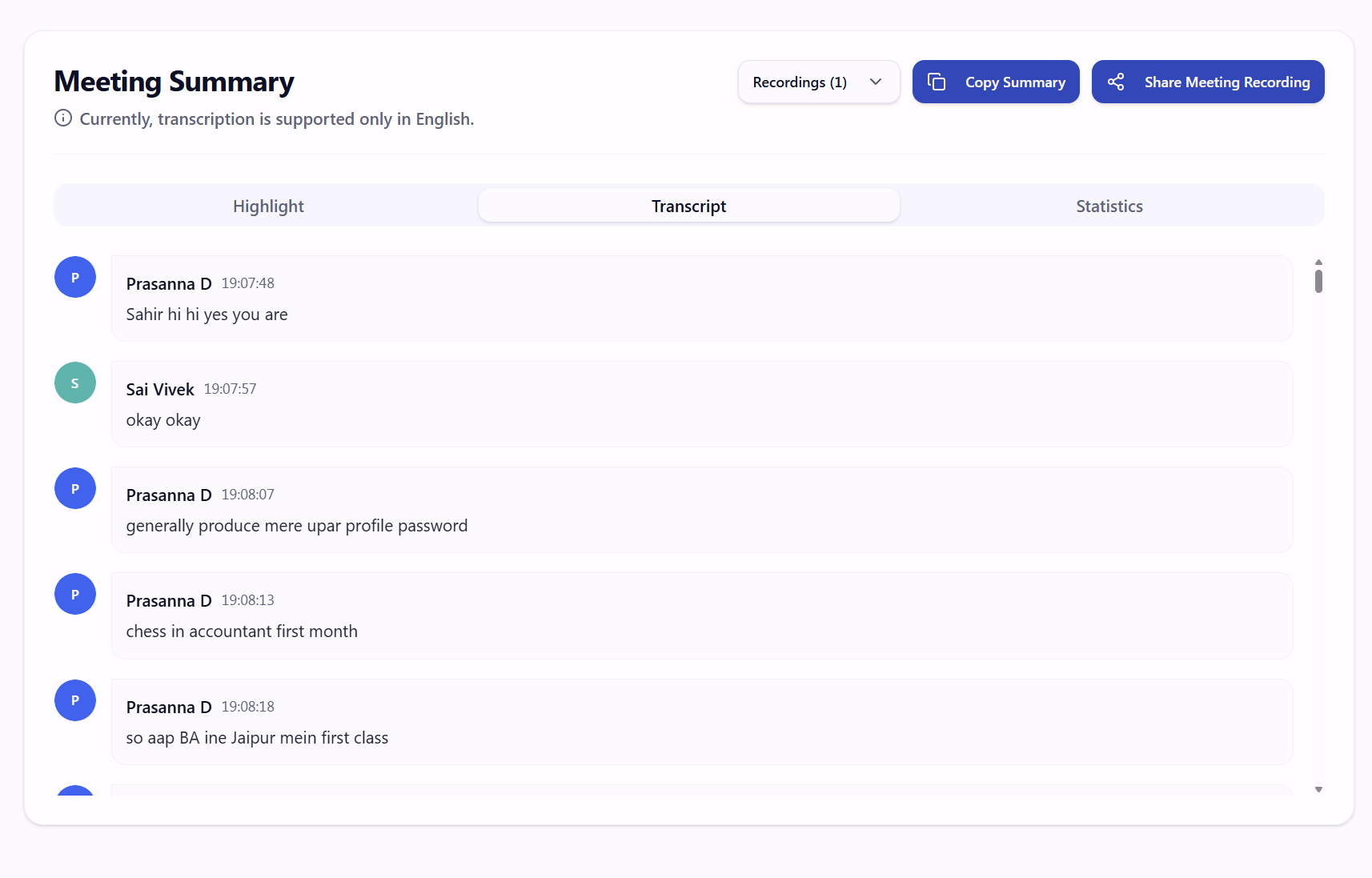
Real meetings can still produce unclear or inaccurate transcript sections. Two people may speak together. Someone may join through a shared conference-room device. A product name may sound similar to an ordinary word.
That is why names, dates, amounts, product terms, and commitments deserve a quick check against the recording.
Treat the transcript as the place to confirm the conversation, not as an automatically approved record.
Meeting Summaries
Meeting summaries reduce a longer conversation into a consolidated text summary after the call. A useful recap should make these points clear:
- What was discussed
- What was finally decided
- What is still open
- What follow-up work came out of the meeting
Vitel Meet produces condensed recaps from meeting discussions and action points. Those recaps sit with the wider meeting record, giving the reviewer a shorter view before opening the transcript for detail.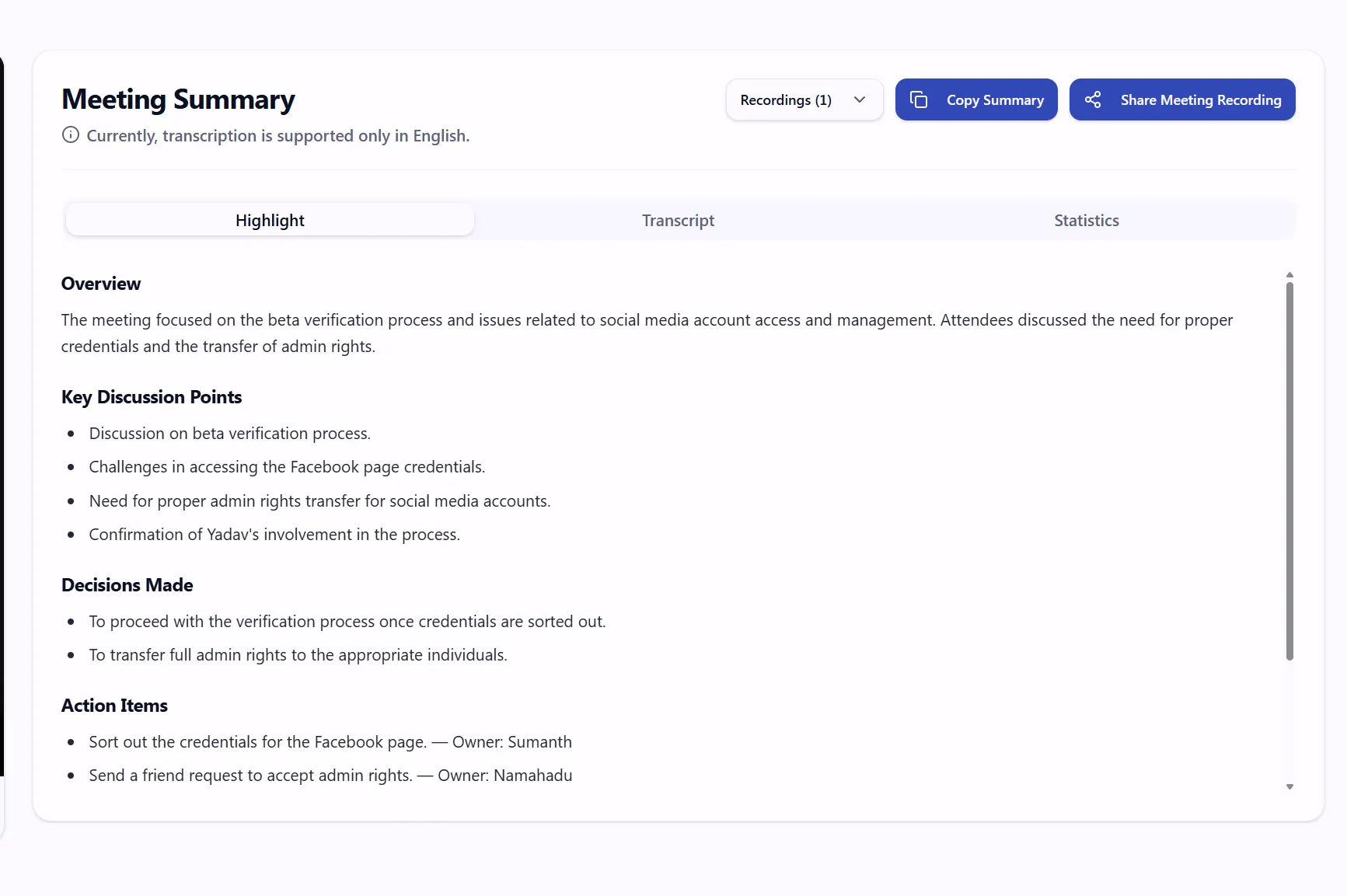
The final decision deserves special attention.
Suppose a team spends most of a meeting working toward a Thursday deadline. Near the end, a client dependency changes it to Friday.
The reviewed summary needs Friday. If Thursday remains in the recap, the reviewer should correct the meeting record before sharing it.
Action Items
Meeting action items turn discussion into follow-up work. A useful task needs three things:
- The work to be completed
- The person who accepted it
- The agreed deadline
Vitel Meet can identify action items and decisions from the conversation. Tasks can be linked with agenda points, assigned to owners, and given deadlines. That does not mean every detected task automatically has a confirmed owner or confirmed date.

Take this example:
“Someone should update the pricing slide before Friday.”
The system may correctly identify “update the pricing slide” as follow-up work.
But who owns it?
If nobody accepted the task during the call, the reviewer should leave the owner unconfirmed and ask the team to assign one. Do not attach a person’s name simply because that person mentioned the task.
A reviewed version might become:
“Update the pricing slide by Friday. Owner: to be confirmed.”
After the team assigns Maya, it can become:
“Maya will update the pricing slide by Friday.”
That small check prevents generated notes from creating work that nobody actually accepted.
Participant Statistics
Participant statistics can show attendance, speaking activity, engagement, and how long people took part in the session. Vitel Meet includes speaker and participation reporting for this type of review.
Use those numbers for context.
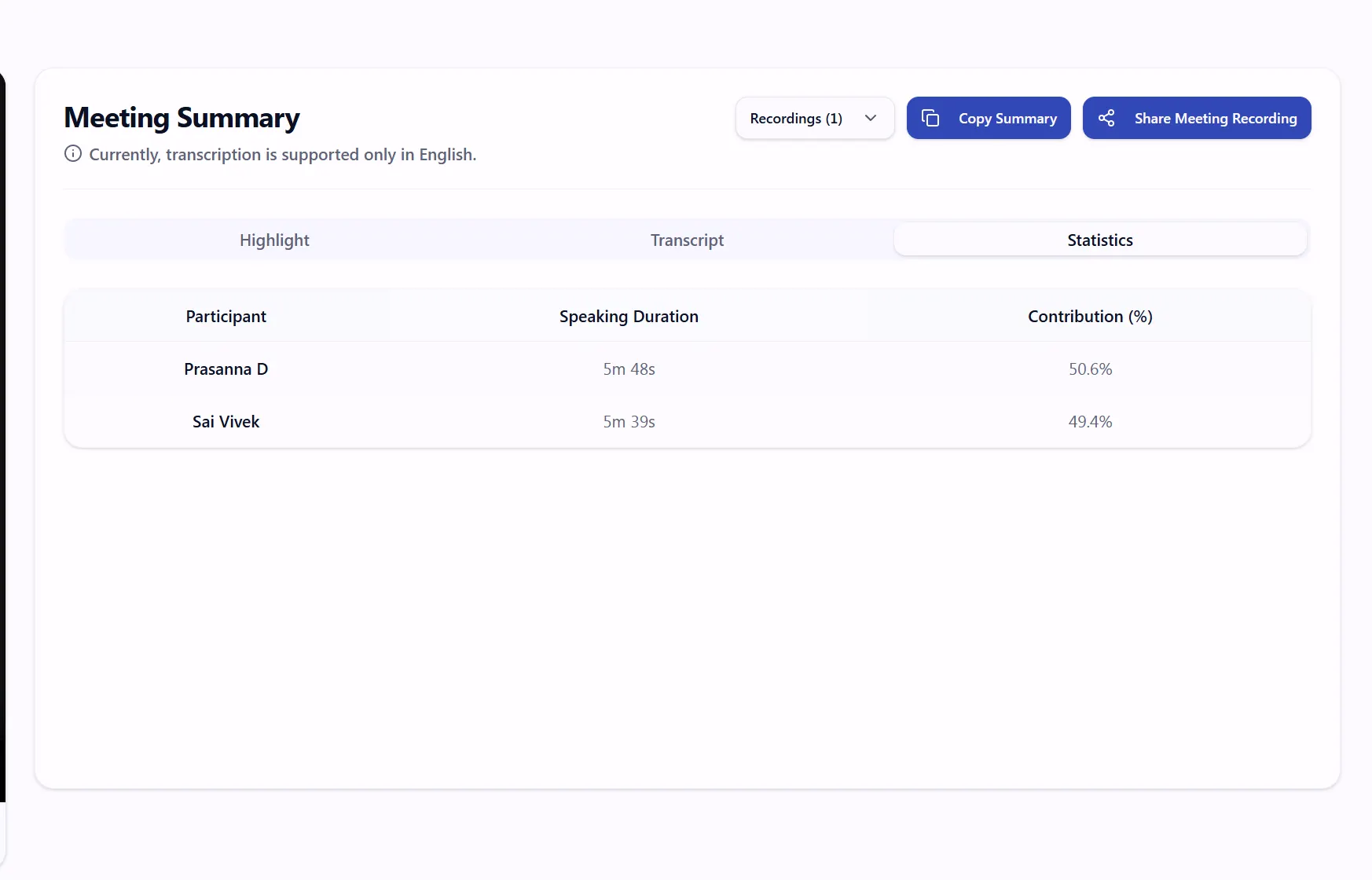
A participant who spoke for three minutes may have made the final decision. Another person may speak for twenty minutes simply because they were presenting.
Speaking time does not measure the value of someone’s contribution.
The meeting outcome, transcript, agenda, and participant role provide context that a duration number cannot give on its own.
What You Need Before Recording and Transcribing a Meeting
The post-meeting record depends on what was active during the session.
Before the meeting begins, check four things:
- Recording is permitted for the meeting.
- Transcription or subtitles are activated when a searchable transcript is required.
- The host or moderator has the required account permission.
- Participants know that the session is being recorded or transcribed where company policy or applicable rules call for notice.
Vitel Meet includes Recording, Subtitles & Transcripts, host and moderator controls, User Management, and Access Controls. Account administrators can assign roles and permissions for admins, moderators, and participants.
The practical setup should happen before people start discussing client commitments or project decisions.
The administrator should first confirm that the meeting host or moderator has access to the required recording and transcription functions. The host can then check the session controls before the discussion starts.
For transcription, Vitel Meet includes a Subtitles & Transcripts option that activates captions and creates searchable text transcripts.
Audio preparation matters too.
Check the microphone. Ask participants to join under recognizable names. If five employees join through one account called “Conference Room,” later speaker attribution may need more manual checking.
For sensitive discussions, restrict access to the recording and generated outputs to the people who need them.
How to Prepare a Meeting for Accurate Follow-Up
Reliable meeting follow-up starts during the call. If a decision matters, say it clearly. Instead of:
“That should work.”
say:
“We agreed to move the deadline to Friday, October 9.”
The same rule applies to ownership. Instead of:
“Maybe Daniel can take this.”
say:
“Daniel, can you own the pricing update?”
Then wait for Daniel to accept before treating it as his action item.
That difference matters when the system later extracts follow-up work.
Names, figures, dates, product terms, and final decisions deserve clear wording too. If the team changes a number or deadline, repeat the final version before leaving the topic.
For example:
“Earlier we discussed Thursday. The final deadline is Friday.”
That gives both the transcript and the reviewer a clear closing point.
Where to Find the Transcript, Summary, and Action Items
After the meeting ends, open the Vitel Meet Unified Dashboard for the completed session. The post-meeting area brings together:
- Recording
- Highlights
- Transcript
- Action items
The transcript can be downloaded in TXT format. Meeting summaries, transcripts, and assigned tasks can be delivered by email, and recordings can be replayed for verification. A realistic review order is:
- Open the summary first.
- Check the decisions.
- Review the action items.
- Open the transcript for any point that needs proof or context.
- Replay the relevant recording section when the transcript or speaker label is uncertain.
Then share the reviewed version.
Do not assume that a generated task is final simply because it appears in the Action Items area. Check who accepted the task and whether the deadline was actually stated.
How to Review Transcript Accuracy and Speaker Attribution
Start with details that could change what somebody does next.
Check names, dates, dollar amounts, percentages, client requests, product names, deadlines, and approvals.
Then check speaker attribution around commitments.
Suppose the transcript shows:
“Alex: I can send the revised proposal Friday.”
If Michael actually said it, the words may be accurate, but the speaker attribution is wrong.
Replay that section and correct the record before anyone turns the statement into a task for Alex.
Shared-room audio deserves extra attention. Overlapping speech does too.
Do not waste time cleaning harmless filler words. The purpose of transcript review is to protect the meaning of the meeting.
For meeting follow up, the highest-value checks are:
- Who said it
- What was agreed
- What changed
- Who accepted the work
- When it is expected
Does the Meeting Summary Preserve the Final Decisions?
A summary can read clearly and still preserve the wrong final decision. Use a short test meeting to check this before your team depends on generated recaps. A five-minute validation meeting can include this sequence:
At minute one:
“The draft is due Thursday.”
Near the end:
“The client moved the review. The final deadline is Friday.”
Then add a second statement:
“Someone needs to prepare the revised pricing slide.”
Do not assign an owner during the meeting.
After the session, open the Vitel Meet summary and action items.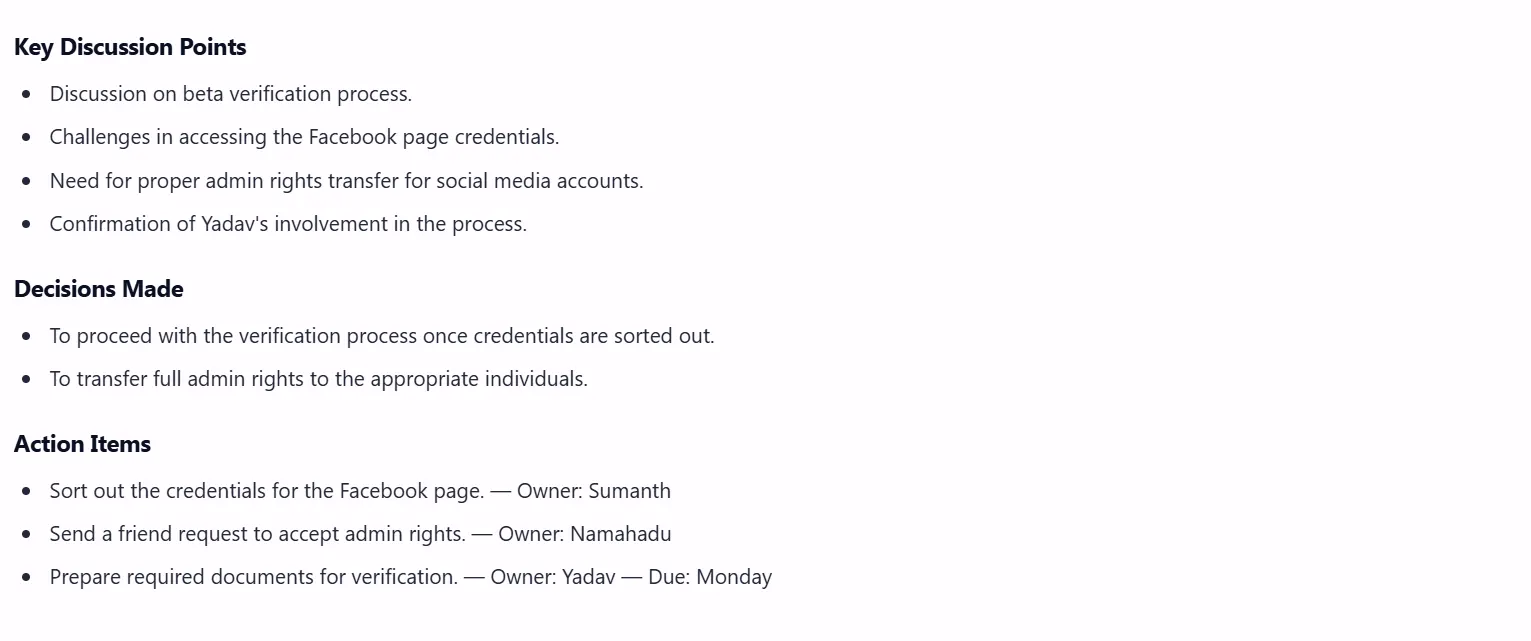
Check two things.
- First, does the summary show Friday as the final deadline rather than Thursday?
- Second, does the pricing-slide task appear without inventing an owner?
The product team should record the observed result from an actual Vitel Meet session before this example is published as a tested outcome.
Use a record like this:
| Review Point | What Was Actually Agreed | Generated Output | Reviewer Action |
| Deadline | Changed from Thursday to Friday | Record actual Vitel result | Correct only if needed |
| Pricing slide | Task identified, no owner accepted | Record actual Vitel result | Keep owner unconfirmed until assigned |
| Speaker names | Confirm against participants | Record actual Vitel result | Correct any wrong attribution |
| Final decision | Friday is final | Record actual Vitel result | Share only after confirmation |
Do not fill the “Generated Output” column from assumption.
Use the actual meeting recording, original generated notes, and any corrections made by the reviewer.
How to Verify Action-Item Owners and Deadlines
Meeting action items are useful only when the person reading them knows what needs to happen, who accepted the work, and when it is expected.
Vitel Meet can identify follow-up tasks from a conversation and place them with the meeting record. Tasks can be linked to agenda items, associated with owners, and given deadlines.
That extraction still needs a human check. Suppose the meeting contains this exchange:
“Someone should update the pricing slide before Friday.”
The task itself is clear. The owner is not.
Do not turn that into:
Do not write, ‘Jordan will update the pricing slide by Friday,’ unless Jordan actually accepted the work.
Keep it as:
“Update the pricing slide by Friday. Owner to be confirmed.”
Once the team assigns Jordan, the reviewed record can be updated.
The same care applies to deadlines.
“By the end of the week” may make sense immediately after the call. Three weeks later, it can be unclear. The reviewed version should use the calendar date where the timing matters.
A useful review asks:
- What exactly needs to happen?
- Who actually accepted the task?
- What date was finally agreed?
- Did the deadline change later in the meeting?
- Does the generated action item match the final conversation?
That prevents a detected task from becoming an incorrect assignment.
How to Share a Reviewed Meeting Record
Sharing should happen after the important details have been checked.
In Vitel Meet, transcripts, summaries, action items, and recordings can be shared from the post-meeting record. Vitel Meet includes one-click sharing through email or dashboard access, playback options, downloadable transcripts, and automatic email delivery for meeting summaries, transcripts, and assigned tasks.
Before sharing, review:
- Final decisions
- Names
- Dates
- Task owners
- Deadlines
- Any open item that still has no owner
The full transcript does not need to be rewritten. It remains the reference point when someone needs the original wording.
A practical sharing flow is:
- Open the completed meeting in the Unified Dashboard.
- Review the meeting recap.
- Check the Action Items area.
- Open the transcript where a decision, owner, or deadline needs confirmation.
- Replay the related recording section if the text is uncertain.
- If the generated output can be edited in your Vitel Meet account, correct the item there. If it cannot, record the correction in the approved follow-up note that will be shared with the team.
- Use the available email or sharing option to send the meeting record to the intended recipients.
- Then perform one last check that is often missed: ask one recipient to open what was shared.
- A successful Send action does not prove that the recipient has the right access.
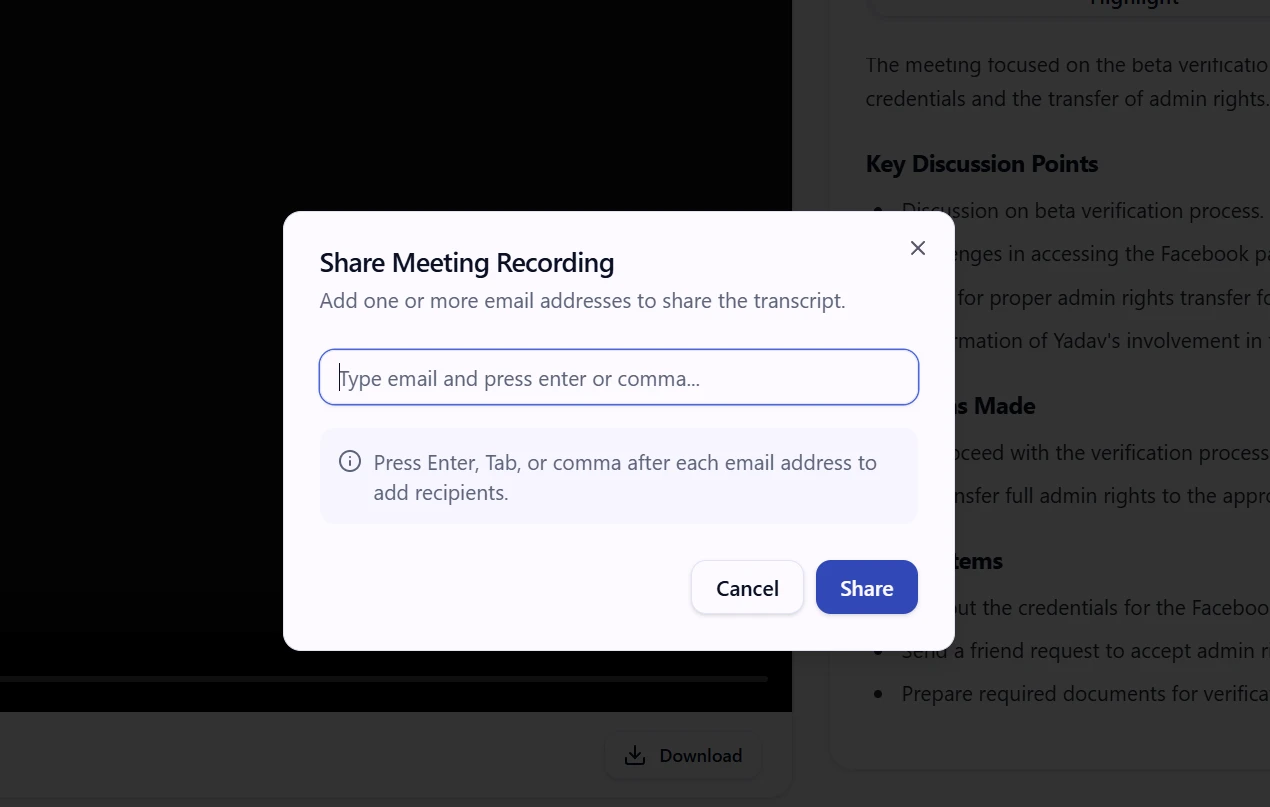
For internal meetings, test the shared link with an ordinary participant account rather than the meeting administrator account. For an external recipient, confirm whether the shared item opens through the intended access method.
Vitel Meet supports email sharing, dashboard access, transcript downloads, recording playback, and participant visibility for post-meeting records.
Explore Vitel Meet AI Features
How to Interpret Meeting Analytics Without Overreading Them
Participant statistics can show attendance, engagement, speaker activity, and patterns of participation. Those numbers can answer practical questions.
- Who attended?
- Who joined late?
- Did someone leave before the final decision?
- Was most of the discussion handled by one or two speakers?
Vitel Meet provides participant statistics for attendance, engagement, speaker activity, and participation.
Speaking time needs context.
A person who talks for twenty minutes may have been presenting a report. Someone who speaks for two minutes may have approved the budget, corrected a deadline, or settled the decision that mattered most.
Neither number tells you the value of the contribution by itself.
Use participant statistics to understand how the meeting unfolded. Do not turn speaking duration into an employee score.
The transcript, agenda, participant role, and final meeting outcome provide the missing context.
Common Meeting Transcription and Summary Problems
Generated meeting records become much more useful when reviewers know where mistakes usually appear.
Wrong Speaker Labels
Shared microphones, overlapping speech, similar voices, or unclear participant names can attach a statement to the wrong person.
That becomes serious when the statement contains an approval, objection, deadline, or commitment.
Names and Terms Are Captured Incorrectly
Employee names, client names, abbreviations, product terms, dollar values, and technical phrases deserve a closer look.
A harmless spelling mistake may not affect the meeting record. A wrong product name inside a client requirement might.
The Summary Keeps an Earlier Decision
A meeting can contain several versions of the same decision.
- Thursday may become Friday.
- $25,000 may become $22,000.
- One vendor may be discussed for thirty minutes before the team chooses another.
The recap needs the final version.
A Task Appears Without a Confirmed Owner
Vitel Meet can identify follow-up work, but the reviewer should still confirm whether someone actually accepted the task.
“Maybe Chris can handle it” should not become “Chris owns it” without confirmation.
A Deadline Is Too Vague
“Friday” is understandable during the meeting.
Later, an exact date is safer.
Discussion Is Mistaken for Approval
Ideas, objections, alternatives, and final decisions may all appear in the transcript. The reviewed meeting summaries should separate them.
The review should focus on the points that affect later work rather than trying to polish every sentence.
A Practical Post-Meeting Review Workflow
A good meeting follow up process should take minutes, not turn into another meeting.
- Start in the Vitel Meet Unified Dashboard.
- Open the meeting recap and read it once from beginning to end.
- Then check the final decisions.
- If the recap says Thursday but the final conversation says Friday, update the reviewed record to Friday.
- Next, open the Action Items area.
Look for three things beside each task:
- Task
- Owner
- Deadline
If the task has no accepted owner, leave that point open.
Do not guess.
Then open the transcript for any item that needs proof.
Search for the relevant name, deadline, number, or decision. Speaker-labeled transcripts make it possible to return to the part of the conversation that created the task or decision.
Use the recording only where the transcript itself leaves doubt.
Then check open questions.
A question that the team did not resolve should not sit beside completed decisions in a way that makes it look settled.
Finally, share the reviewed record and verify that at least one intended recipient can open it.
A compact review record could look like this:
| Review Item | Check |
| Summary | Does it reflect the final outcome? |
| Transcript | Are names, figures, dates, and key wording correct? |
| Speaker labels | Are commitments attached to the right person? |
| Action items | Did the named person actually accept the task? |
| Deadlines | Is the final calendar date recorded? |
| Open questions | Are unresolved points clearly separated? |
| Sharing | Can the intended recipient open the shared record? |
The goal is not to rewrite everything. The goal is to make sure nobody acts on the wrong meeting record.
Validate Vitel Meet With One Short Test Meeting
Before relying on the workflow for client or project meetings, run one short internal test. Use a five-minute meeting with a prepared script.
At the beginning, say:
“The first draft is due Thursday.”
Later, change it:
“The deadline has changed. The final due date is Friday.”
Then add a task:
“Someone needs to update the pricing slide by Friday.”
Do not assign an owner.
End with one clearly assigned task:
“Michael will send the final customer list by Monday.”
After the meeting, open the Unified Dashboard and check what Vitel Meet produced. The reviewer should record the result like this:
Example outputs and review:
| Test Point | What Happened | Actual Vitel Meet Output | Review Result |
| Deadline | Thursday changed to Friday | “Final draft due Friday” | Correct |
| Pricing slide | Task stated with Friday deadline; no owner accepted | “Update pricing slide by Friday” | Correct – owner remained unassigned |
| Customer list | Michael accepted task for Monday | “Michael: Send final customer list by Monday” | Correct |
| Speaker label | Michael made commitment | Vitel attributed statement to Michael | Correct |
| Summary | Friday was final deadline | Summary stated Friday | Correct |
How Vitel Meet Supports Better Meeting Follow-Up
Vitel Meet keeps the main post-meeting records together rather than leaving the team to rebuild the call from memory.
The Unified Dashboard brings recordings, highlights, transcripts, and action items into one post-meeting location. Speaker-labeled transcripts can be searched and downloaded. Smart recaps condense the discussion. Action items can be connected with agenda points, owners, and deadlines. Recordings remain available when somebody needs to check the original conversation.
Vitel Meet can send meeting summaries, transcripts, and assigned tasks by email after the session. The same records can be shared through the dashboard, and transcript or highlight files can be downloaded for separate record-keeping.
- That gives different people different ways to review the same meeting.
- A manager who missed the call can read the recap.
- A project lead can review the action items.
- A team member questioning a deadline can search the transcript.
- Someone who needs the original context can replay the recording.
- The system reduces the amount of meeting information a person has to reconstruct manually.
- The review step still belongs to the team.
A generated task should not gain an owner that nobody accepted. A changed deadline should not stay on its earlier date. A speaker label should not turn into an assignment until the reviewer knows the attribution is correct.
That combination of generated meeting records and human review is what makes the post-meeting information dependable.
Turn Every Meeting Into Clear Follow-Up
Capture transcripts, summaries, decisions, and follow-up tasks in Vitel Meet, then review the details that matter before sharing.
Frequently Asked Questions
1. What is the difference between a meeting transcript and meeting summary?
A transcript records the conversation in detail and identifies speakers where available. A summary condenses the meeting into discussion points, decisions, open questions, and follow-up work.
2. Should AI meeting summaries be reviewed before sharing?
Yes. Check final decisions, names, figures, dates, task owners, and deadlines before treating the recap as the approved meeting record.
3. Does Vitel Meet automatically know who owns every action item?
Vitel Meet can detect follow-up tasks and associate action items with owners and deadlines. A reviewer should still confirm that the person actually accepted the task during the meeting.
4. Where can I find Vitel Meet transcripts and action items after a meeting?
The Vitel Meet Unified Dashboard brings recordings, highlights, transcripts, and action items together for post-meeting review. Transcripts can also be downloaded, and meeting records can be shared through email or dashboard access.
5. Does speaking time show who contributed most?
No. Speaking time shows how long someone spoke. It does not measure the importance of what that person said or decided.
Published: October 12th, 2026
Subscribe to Our Latest Updates
Get monthly product and feature updates, the latest industry news, and more!