



How to Turn Off Call Forwarding (Step-by-Step Guide for iPhone, Android & Landlines)
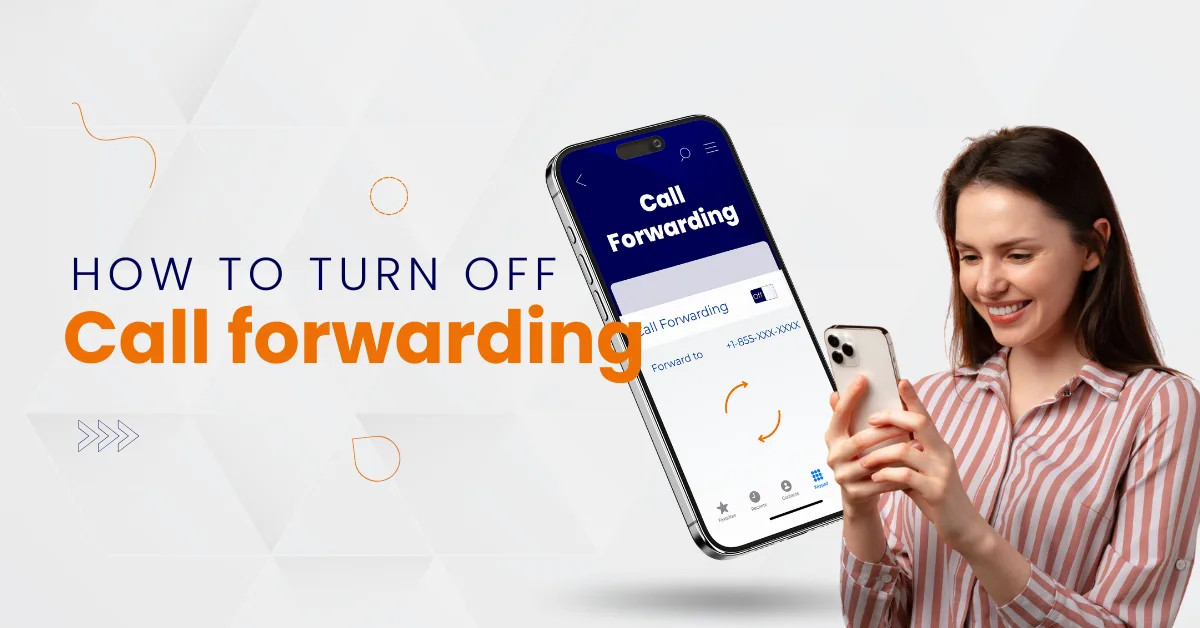

Table of Contents
Managing call forwarding sounds simple.
But many users miss important calls because one setting was never turned off.
At Vitel Global, we regularly see businesses struggle with missed incoming calls, misrouted callers, and forwarding loops—especially when teams use mobile apps, VoIP systems, and landline phones together.
This guide explains how to turn off call forwarding on every device.
You will learn what settings to check, which codes to dial, and how to confirm forwarding is disabled—without confusion.
What Call Forwarding Actually Does (And Why It Gets Forgotten)
Call forwarding redirects incoming calls from one phone line to another number.
This includes mobile phones, VoIP systems, and landline phones.
Forwarding helps when you are busy, unreachable, or traveling.
But problems start when unconditional call forwarding stays active unintentionally.
Common reasons call forwarding stays on
- The phone was switched without disabling forwarding settings properly
- SIM card changed, but forwarding remained active
- Carrier-level forwarding is enabled using dial codes
- Business phone systems using supplementary services
- Mobile apps sync forwarding rules automatically
At Vitel Global, we recommend checking device settings and carrier rules together.
Types of Call Forwarding You Should Know
| Forwarding Type | What It Does | When It Triggers |
| Unconditional call forwarding | Forwards every incoming call immediately | Always active |
| Busy forwarding | Redirects calls when the phone line is busy | During active calls |
| Unreachable forwarding | Sends calls when the device or network is unavailable | No signal or network outage |
| No answer forwarding | Forwards calls after a set ringing time | Missed calls |
Unconditional forwarding causes most issues.
Unconditional forwarding sends calls instantly to another number.
How to Turn Off Call Forwarding on iPhone
Turning off call forwarding on an iPhone is quick.
Apple places this option directly inside the Phone settings.
Follow each step carefully to make sure forwarding is fully disabled.
Step-by-Step: Turn Off Call Forwarding Using iPhone Settings
- Open the Phone app
This is the green phone icon you use to make calls. - Tap “Settings”
You will find this option inside the Phone app menu. - Select the “Call Forwarding” option
This screen shows whether call forwarding is currently active. - Toggle the call forwarding switch off
The switch should turn gray once disabled. - Wait for confirmation
Your iPhone may briefly process the change before saving it.
Once turned off, incoming calls will ring on your iPhone instead of forwarding.
How to Confirm Call Forwarding Is Disabled
After switching off call forwarding:
- Call your iPhone from a different phone
- Make sure the call rings on your device
- Confirm it does not redirect to another number
If the switch stays off, call forwarding is disabled successfully.
What to Do If Call Forwarding Still Stays Active
Sometimes, call forwarding remains enabled at the carrier level.
In this case, device settings alone may not be enough.
Try the following steps in order:
- Restart the iPhone completely
This refreshes network and phone services. - Remove and reinsert the SIM card
This forces the phone to reconnect to the carrier network. - Toggle Airplane Mode on and off
Leave it on for ten seconds before disabling it. - Contact customer service for a carrier reset
Ask them to disable all call forwarding rules on your line.
The network provider must remove carrier-level forwarding.
When These iPhone Steps Apply
These steps work for:
- Call divert iPhone settings
- Call forwarding iPhone to iPhone
- Most carriers, including Verizon, AT&T, and T-Mobile
If forwarding was enabled using dial codes or business phone services, those rules must be disabled separately.
How to Turn Off Call Forwarding on Android Phones
Android phones may look different by brand and phone model.
However, the steps to turn off call forwarding remain almost the same across most carriers and devices.
Follow the steps below carefully to avoid missing important calls.
Step-by-Step: Disable Call Forwarding on Android Phones
- Open the Phone app
This is the app you normally use to make and receive calls. - Tap the three-dot menu
You will find this in the top right corner of the Phone app screen. - Tap “Settings”
This opens the calling and network-related options for your phone. - Select the “Call forwarding” option
On some phones, this may appear under “Calls” or “Supplementary services.” - Disable all forwarding types
Turn off:- Unconditional forwarding
- Forward when busy
- Forward when unanswered
- Forward when unreachable
Once disabled, your incoming calls will ring on your Android phone normally.
Step-by-Step: Turn Off Call Forwarding on Samsung Galaxy Devices
Samsung Galaxy devices place call forwarding under supplementary services.
- Open the Phone app
Use the default Samsung dialer. - Tap the three-dot menu
Located in the top right corner. - Select “Supplementary services.”
This section controls advanced calling features. - Tap “Call forwarding.”
You will see different forwarding options listed. - Turn off “Unconditional forwarding.”
Also, disable busy, unanswered, and unreachable forwarding if enabled.
This immediately stops all call divert and redirection rules.
Important Check After Disabling Call Forwarding
After completing the steps:
- Make a test call from a different phone
- Confirm your Android phone rings normally
- Ensure calls do not redirect to another number
If calls still forward, restart the device or contact your carrier.
When These Steps Apply
These steps work for:
- Android call divert
- Android redirect calls
- Android phone forward calls
- Most carriers and SIM cards
If call forwarding remains active, carrier-level forwarding may need to be disabled using dial codes or customer support.
Turn Off Call Forwarding Using Dial Codes (All Phones)
Sometimes device settings fail.
Carrier-level forwarding still stays active.
Universal dial codes to disable forwarding
- Dial ##21# then press call
- Wait for the confirmation beep
- End the call
This code cancels unconditional call forwarding on most carriers.
Other useful codes
- ##67# – Disable busy forwarding
- ##62# – Disable unreachable forwarding
- ##61# – Disable no answer forwarding
After dialing, make a test call from a different phone.
How to Turn Off Call Forwarding on Landline Phones
Landline phones still support forwarding through network services.
Step-by-Step: Disable Call Forwarding on a Landline
- Pick up the phone handset
Lift the receiver and wait until you hear a clear dial tone. - Dial 73 or #73
Enter the full code using the keypad.
Use 73 in most regions. Some carriers require #73 instead. - Wait for a confirmation tone or message
You may hear a beep, a recorded message, or a short confirmation sound.
This means call forwarding has been turned off successfully. - Hang up the phone
Place the handset back on the base to complete the process.
Once finished, incoming calls will ring directly on your landline again.
Some providers require contacting customer service directly.
For VoIP landlines powered by Vitel Global, forwarding can be managed through the admin dashboard or mobile apps.
How to Confirm Call Forwarding Is Fully Disabled
Never assume forwarding is off.
Always test it.
Verification checklist
- Call your phone from a different number
- Ensure the phone rings normally
- Confirm voicemail receives unanswered calls
- Check forwarding number no longer receives calls
Missing this step leads to missing important call scenarios.
Troubleshooting When Call Forwarding Will Not Turn Off
If forwarding refuses to disable, follow these steps.
Proven troubleshooting steps
- Restart the device after changing settings
- Reset network settings completely
- Update phone operating system
- Remove call forwarding apps
- Contact the customer support team
Most carriers can reset forwarding remotely.
At Vitel Global, our support team resolves forwarding issues within minutes.
Business Call Forwarding vs Personal Phone Forwarding
Business systems work differently.
Key differences explained
- Business forwarding works at the system level
- Rules may exist inside admin portals
- Call center queues override phone settings
- CRM integrations apply routing logic
Vitel Global’s call forwarding service allows precise control without risking missed calls.
Why Businesses Choose Smart Forwarding with Vitel Global
Turning off call forwarding should never disrupt operations.
Vitel Global offers phone forwarding services that remain visible, auditable, and adjustable.
Key advantages for businesses
- Centralized forwarding settings dashboard
- Mobile and desktop softphone control
- CRM and call-center integration support
- Real-time analytics and call tracking
- Enterprise-grade reliability
Call Forwarding Best Practices for Teams
Use forwarding intentionally.
Disable it properly.
Best practices to follow
- Review forwarding rules monthly
- Avoid unconditional forwarding permanently
- Always test forwarding changes immediately
- Document forwarding configurations internally
- Use VoIP dashboards for transparency
This avoids confusion across teams and callers.
Final Thoughts
Turning off call forwarding should be simple.
But mixed devices, carriers, and systems complicate it.
This guide helps you disable call forwarding, call divert, and unconditional forwarding correctly—on iPhone, Android, landlines, and business systems.
With Vitel Global, businesses gain full control over call routing, forwarding options, and customer experience—without risking missed important calls.
If you want smarter call management, scalable VoIP, and zero confusion, Vitel Global is built for you.
Regain Full Control of Your Business Calls
Ready to Manage Calls Smarter? Eliminate missed calls using intelligent VoIP call routing, forwarding controls, analytics, and enterprise-grade reliability.
Frequently Asked Questions
1. How do I turn off call forwarding if the settings do not work?
If phone settings fail, dial carrier deactivation codes like ##21#. Restart your device, reset network settings, and contact customer service. Carrier-level forwarding overrides phone controls and must be disabled directly through the network.
2. Why does call forwarding turn back on automatically?
Forwarding may reactivate due to SIM changes, synced mobile apps, VoIP dashboards, or supplementary services. Business phone systems often apply routing rules automatically unless disabled from the admin portal or carrier backend.
3. How do I turn off call forwarding on Verizon or T-Mobile?
Open your phone app, disable forwarding in settings, then dial ##21#. Verizon and T-Mobile also allow forwarding management through carrier apps or customer support if forwarding remains active.
4. Can call forwarding affect voicemail behavior?
Yes. If forwarding stays active, voicemail may never receive calls. Calls may route to a forwarding number’s voicemail instead. Always test voicemail after disabling forwarding to ensure callers reach the correct mailbox.
5. Is call forwarding different on VoIP systems?
Yes. VoIP systems use software-level routing. Forwarding rules exist inside dashboards, mobile apps, or CRM integrations. Platforms like Vitel Global provide full visibility and control without relying on phone dial codes.
Published: February 4th, 2026
Subscribe to Our Latest Updates
Get monthly product and feature updates, the latest industry news, and more!